How to automatically deploy a passwordless Azure PostgreSql Server

The Story
I recently migrated off of using a MacBook for reasons that are irrelevant to this post but I moved back to Windows. I wanted the premium quality and battery life of the MacBook hardware so I decided on a Surface Laptop 7. Everything was going well and I wasn’t having to change OS’s between personal and professional anymore. The problem? SQL Server containers are not supported on ARM64! Wait - how does MacBook do it? Well, they have Rosetta 2 (but that’s going away very soon) which “polyfills” Intel architecture.
So it’s a problem - one which Microsoft seems to be slow-rolling.
Since this was the only issue I had with ARM64 after using it for a couple weeks, I decided to just bite the bullet and move over to PostgreSQL, something I’ve been wanting to do anyway for its lower cost, wider adoption, and some querying features that I find myself really needing.
I had already done a similar post for Azure SQL Server and since that was a bit of a pain, too, I figured why not share how to do it with postgres too? If you’ve already read that one, the first few sections are very similar.
Overview
Want to just see the code? Click here!
Here’s the end-to-end toolchain we are using and which the post will use:
- .NET 10
- Entity Framework Core (with its built-in migrations)
- Bicep
- GitHub Actions
- Azure
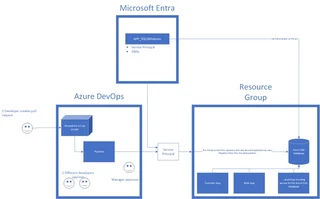
Overall, the end-state architecture is created to satisfy a process that requires two developers to approve a pull request, and a manager to approve changes. Upon merge into main, the infrastructure-as-code is deployed out via a pipeline where the database is created and permissions are set. This is reflected in the following diagram (note this says Azure DevOps but GitHub Workflows are identical):
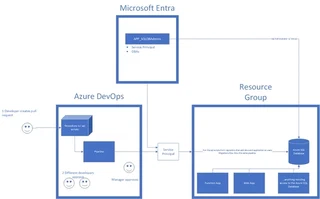
Azure SQL Database Diagram
Yours might differ but this is what is being built and hopefully you can pull most of the pieces of this.
Assumptions
I’ve made a few assumptions in order to keep this post focused specifically on PostgreSQL. They are:
- You already have a resource group in Azure.
- There is an existing service connection in Azure that ties back to Azure DevOps so you can deploy your infrastructure-as-code to the resource group.
If you’re used to assigning Directory.Read.All permissions or Directory Readers to your managed identity from Azure SQL, this isn’t needed for Postgres - hooray!
The C# Code
If you’re familiar with EF Core with SQL Server, this is slightly different because our development environment (which I’m saying is local to my machine) is different than how we will authenticate up in the cloud.
Entity Framework Core Setup
From a brand new dotnet new webapi application, add the following NuGet packages
  Npgsql.EntityFrameworkCore.PostgreSQL
  Microsoft.EntityFrameworkCore.Tools
  Azure.Identity
Create a DbContext and add any associated database models.
// PostgreSqlDbContext.cs

public class PostgreSqlDbContext(DbContextOptions<PostgreSqlDbContext> options) : DbContext(options)
{
    public DbSet<Todo> Todos { get; set; }
}

public class Todo
{
    public int Id { get; set; }
    public required string Name { get; set; }
}
Inside of Program.cs, register your DbContext to your services.
  builder.Services.AddDbContext<PostgreSqlDbContext>((serviceProvider, options) =>
  {
      options.UseNpgsql(builder.Configuration.GetConnectionString("PostgresDatabase"), sql =>
      {
          // When its not the development environment grab a token from Azure.
          if (!builder.Environment.IsDevelopment())
          {
              // Configure this data source to get a token from azure and store it for 24 hours.
              sql.ConfigureDataSource(dataSourceBuilderAction =>
              {
                  dataSourceBuilderAction.UsePeriodicPasswordProvider(async (_, ct) =>
                  {
                      var credentials = new DefaultAzureCredential();
                      var token = await credentials.GetTokenAsync(new TokenRequestContext(["https://ossrdbms-aad.database.windows.net/.default"]), ct); // This is a static endpoint for everyone - not just this demo. Use this endpoint!
                      return token.Token;
                  }, TimeSpan.FromHours(24), TimeSpan.FromSeconds(10));
              });
          }
      });
  });
Making a Migration
If you already have Migrations setup, skip to The Infrastructure (as code).
Navigate to your .csproj and run the following migration command, where InitialCreate is the name of your migration, and run the following command
dotnet ef migrations add InitialCreate -o ./Migrations
The Infrastructure (as code)
The bicep is pretty straightforward for Microsoft.DBforPostgreSQL/flexibleServers (unlike Azure SQL).
// posgres-server.bicep
resource postgres 'Microsoft.DBforPostgreSQL/flexibleServers@2025-06-01-preview' = {
  name: resourceName
  location: location
  sku: {
    name: 'Standard_B1ms'
    tier: 'Burstable'
  }
  properties: {
    version: '18'
    authConfig: {
      // Only allow active directory auth
      activeDirectoryAuth: 'Enabled'
      passwordAuth: 'Disabled'
    }
    storage: {
      storageSizeGB: 32
      autoGrow: 'Enabled'
    }
    network: {
      publicNetworkAccess: 'Enabled'
    }
    backup: {
      backupRetentionDays: 30
      geoRedundantBackup: 'Disabled'
    }
  }

  // Add a database
  resource database 'databases' = {
    name: '${applicationName}-${ecosystem}-db-01'
    properties: {}
  }
}

// This must be done separately due to conflicts with the Entra setup
resource ipFirewallRule 'Microsoft.DBforPostgreSQL/flexibleServers/firewallRules@2025-06-01-preview' = [for (ip, i) in ipAddressAllowList: {
  name: '${applicationName}-${ecosystem}-dbfw-0${i}'
  properties: {
    startIpAddress: ip
    endIpAddress: ip
  }
  parent: postgres
}]

// This must be after all other setup to avoid conflicts
resource admin 'Microsoft.DBforPostgreSQL/flexibleServers/administrators@2025-06-01-preview' = {
  name: applicationDatabaseAdminsObjectId
  properties: {
    principalType: 'Group'
    principalName: applicationDatabaseAdminsName
  }
  parent: postgres
  dependsOn: [
    ipFirewallRule
  ]
}

output connectionString string = 'Server=${postgres.properties.fullyQualifiedDomainName};Database=${postgres::database.name};User Id=${applicationIdentityName};Port=5432;Ssl Mode=Require;' // No password in connection string
output hostName string = postgres.properties.fullyQualifiedDomainName
output databaseName string = postgres::database.name
The Initial Creation SQL Scripts
After the database exists, we need to run two initial scripts that will add the application identity to the postgres server and then allow it to perform CRUD operations on current and future tables. This differs a bit from SQL server as there is less automagic happening.
-- initial-create-postgres-db.sql

-- ${APPLICATION_IDENTITY_NAME} is replaced in the workflow script `database-setup.sh`.
-- Example: ${APPLICATION_IDENTITY_NAME} would be replaced with the name of the user-managed identity resource created in the infrastructure as code (webapplication-dev-umi-01) which the application is running as.

DO $$
BEGIN
    IF NOT EXISTS (
        SELECT 1 FROM pg_roles WHERE rolname = '${APPLICATION_IDENTITY_NAME}'
    ) THEN
        PERFORM pgaadauth_create_principal('${APPLICATION_IDENTITY_NAME}', false, false);
    END IF;
END$$;
We’ve granted permission for the application identity to connect to the database server but it still cannot access any databases or interoperate on them. Let’s fix that.
-- initial-create-application-db.sql
-- Database access
GRANT CONNECT ON DATABASE "${APPLICATION_DATABASE_NAME}" TO "${APPLICATION_IDENTITY_NAME}";

-- Schema access
GRANT USAGE ON SCHEMA public TO "${APPLICATION_IDENTITY_NAME}";

-- Existing tables
GRANT SELECT, INSERT, UPDATE, DELETE ON ALL TABLES IN SCHEMA public TO "${APPLICATION_IDENTITY_NAME}";

-- Existing sequences (identity columns)
GRANT USAGE, SELECT ON ALL SEQUENCES IN SCHEMA public TO "${APPLICATION_IDENTITY_NAME}";

-- Future tables
ALTER DEFAULT PRIVILEGES IN SCHEMA public
GRANT SELECT, INSERT, UPDATE, DELETE ON TABLES TO "${APPLICATION_IDENTITY_NAME}";

-- Future sequences
ALTER DEFAULT PRIVILEGES IN SCHEMA public
GRANT USAGE, SELECT ON SEQUENCES TO "${APPLICATION_IDENTITY_NAME}";
Finally, this is the part where we really deviate from the automagic of Azure SQL. We have to do some variable substitution and connect to two different databases to apply the two scripts. I found this to be too janky and too difficult to understand using the GitHub postgres task so I wrote my own script.
# database-setup.sh
#!/usr/bin/env bash
set -euo pipefail

HOST="$1"
APPLICATION_DATABASE_NAME="$2"
APPLICATION_DATABASE_ADMINS_NAME="$3"
APPLICATION_IDENTITY_NAME="$4"
INITIAL_CREATE_POSTGRES_DB_FILE="$5"
INITIAL_CREATE_APPLICATION_DB_FILE="$6"
MIGRATION_SQL="$7"

echo "----------------------------------------------------"
echo "PostgreSQL AAD Auth Migration Script"
echo "----------------------------------------------------"
echo "HOST:                 $HOST"
echo "DATABASE:             $APPLICATION_DATABASE_NAME"
echo "APP DB ADMINS NAME:   $APPLICATION_DATABASE_ADMINS_NAME"
echo "APP ID NAME:          $APPLICATION_IDENTITY_NAME"
echo "POSTGRES DB FILE:     $INITIAL_CREATE_POSTGRES_DB_FILE"
echo "APP DB FILE:          $INITIAL_CREATE_APPLICATION_DB_FILE"
echo "MIGRATION SQL:        $MIGRATION_SQL"
echo "----------------------------------------------------"

if [[ -z "$HOST" ]]; then
  echo "ERROR: HOST argument is empty" >&2
  exit 1
fi

if [[ -z "$APPLICATION_DATABASE_NAME" ]]; then
  echo "ERROR: APPLICATION_DATABASE_NAME argument is empty" >&2
  exit 1
fi

if [[ -z "$APPLICATION_DATABASE_ADMINS_NAME" ]]; then
  echo "ERROR: APPLICATION_DATABASE_ADMINS_NAME argument is empty" >&2
  exit 1
fi

if [[ -z "$APPLICATION_IDENTITY_NAME" ]]; then
  echo "ERROR: APPLICATION_IDENTITY_NAME argument is empty" >&2
  exit 1
fi

echo "Installing PostgreSQL client..."
sudo apt-get update -y
sudo apt-get install -y postgresql-client

echo "Acquiring AAD token..."
AAD_TOKEN=$(az account get-access-token --resource-type oss-rdbms --query accessToken -o tsv)
export PGPASSWORD="$AAD_TOKEN"

if [[ -z "$AAD_TOKEN" ]]; then
  echo "ERROR: Failed to acquire AAD token for PostgreSQL" >&2
  exit 1
fi

# Base connection string (dbname added later)
BASE_CONN="host=$HOST port=5432 user=$APPLICATION_DATABASE_ADMINS_NAME sslmode=require"
# Export variables for envsubst
export APPLICATION_IDENTITY_NAME
export APPLICATION_DATABASE_NAME

echo "Running initial environment setup against the postgres database"
envsubst < "$INITIAL_CREATE_POSTGRES_DB_FILE" > replaced-postgres.sql
psql --set=ON_ERROR_STOP=1 "$BASE_CONN dbname=postgres" -f replaced-postgres.sql

echo "Running initial environment setup against the application database"
envsubst < "$INITIAL_CREATE_APPLICATION_DB_FILE" > replaced-application.sql
psql --set=ON_ERROR_STOP=1 "$BASE_CONN dbname=$APPLICATION_DATABASE_NAME" -f replaced-application.sql

echo "Running migration SQL against the targeted database..."
psql --set=ON_ERROR_STOP=1 "$BASE_CONN dbname=$APPLICATION_DATABASE_NAME" -f "$MIGRATION_SQL"

echo "----------------------------------------------------"
echo "Database setup and migrations completed successfully."
echo "----------------------------------------------------"
The Github Workflow
Generating Scripts & Publishing
In your GitHub workflow, you’ll want to have a task to generate the EF Core Migration script that will be applied to the database. The following is an example
# deploy-web.yaml
# Install the dotnet-ef tool which is used to generate migrations and then run a custom dotnet command, which we're choosing to run migrations.
- name: Generate Migrations
  run: |
      dotnet tool install --global dotnet-ef
      dotnet ef migrations script --idempotent --project WebApplication1/WebApplication1.csproj --output ${{ env.publish_path }}/Migrations/migration.sql
Lets break down the arguments of the migration script.
- The
--projectargument specifies the path where the migration project is located. - The
--outputargument specifies where to output the file. - The
--idempotentargument specifies to create a script that will apply only the migrations that have not yet been applied.
For more information on these parameters or all available parameters, click here.
A simple example of the “complete” build stage might look like the following
# deploy-web.yaml
build:
  runs-on: ubuntu-latest
  steps:
  - uses: actions/checkout@v4
  - name: Publish
    run: |
      dotnet publish WebApplication.sln -o ${{ env.publish_path }}
  - name: Generate Migrations
    run: |
        dotnet tool install --global dotnet-ef
        dotnet ef migrations script --idempotent --project WebApplication1/WebApplication1.csproj -o ${{ env.publish_path }}/Migrations/migration.sql
  - uses: actions/upload-artifact@v4
    with:
      name: drop-web
      path: ${{ env.publish_path }}
Deploying All The Things
For the next stage, we need to actually do the deploy. We need to:
- Deploy the infrastructure
- Deploy the initial scripts that will permission the product team as well as the application to be able to communicate with the database.
- Deploy the migration scripts we generated earlier in the build phase.
- Deploy the web application
This stage might look like the following which is embedded with comments explaining portions of it
# deploy-web.yml
deploy:
  runs-on: ubuntu-latest
  needs: build
  steps:
  # Sparse checkout only the exact files/folders we need.
  - uses: actions/checkout@v4
    with:
      sparse-checkout: |
        iac
        .github/workflows/sql
        .github/workflows/scripts
  # Login to Azure so we can deploy our resources
  - name: Login to Azure
    uses: azure/login@v2
    with:
      client-id: ${{ vars.AZURE_WORKFLOW_CLIENT_ID }}
      tenant-id: ${{ vars.AZURE_TENANT_ID }}
      subscription-id: ${{ vars.AZURE_SUBSCRIPTION_ID }}
  # First, deploy the infrastructure setup in the bicep file. Our bicep file outputs some variables which are automatically captured and available in ${{ steps.STEP_ID.outputs.VARIABLE_NAME }}
  # APPLICATION_DATABASE_ADMINS_NAME is the name of the group that will be admins.
  # APPLICATION_DATABASE_ADMINS_OBJECT_ID is the object id of that same group.
  - name: Deploy Infra to Azure
    id: deploy-infra
    uses: azure/arm-deploy@v2
    with:
      scope: 'resourcegroup'
      deploymentName: ${{ github.run_number }}
      resourceGroupName: ${{ env.applicationName }}-dev-rg-01
      template: ./iac/main.bicep
      parameters:
        applicationDatabaseAdminsName=${{ vars.APPLICATION_DATABASE_ADMINS_NAME }}
        applicationDatabaseAdminsObjectId=${{ vars.APPLICATION_DATABASE_ADMINS_OBJECT_ID }}
        applicationName=${{ env.applicationName }}
        ecosystem=dev
  # Deploy the database changes. Note that this comes _before_ the web app change so consider the tradeoffs.
  - name: Execute database setup + migrations
    run: |
      bash ./.github/workflows/scripts/database-setup.sh \
        "${{ steps.deploy-infra.outputs.applicationDatabaseServerHostName }}" \
        "${{ steps.deploy-infra.outputs.applicationDatabaseServerDatabaseName }}" \
        "${{ vars.APPLICATION_DATABASE_ADMINS_NAME }}" \
        "${{ steps.deploy-infra.outputs.applicationIdentityName }}" \
        "./.github/workflows/sql/initial-create-postgres-db.sql" \
        "./.github/workflows/sql/initial-create-application-db.sql" \
        "${{ steps.download.outputs.download-path }}/Migrations/migration.sql"
  # Download the artifact produced in the build step.
  - uses: actions/download-artifact@v4
    id: download
    with:
      name: drop-web
  - name: 'Run Azure webapp deploy action using publish profile credentials'
    uses: azure/webapps-deploy@v3
    with:
      app-name: webapplication
      slot-name: 'production'
      package: .
That’s all for now. As a reminder, the entire code base can be found here. Happy coding!

Software engineer, consultant, and writer focused on pragmatic systems, durable delivery, and the craft of building software with other people.
I spend most of my time working in .NET, cloud architecture, testing, and DevOps. Outside of work I read, build PCs, and run Dungeons & Dragons campaigns.